
Document Plugin
The Document Plugin allows you to create rich technical documentation using Markdown and structured content blocks. You can create everything from project documentation and architecture decisions to engineering notes and learning materials.
How to Create
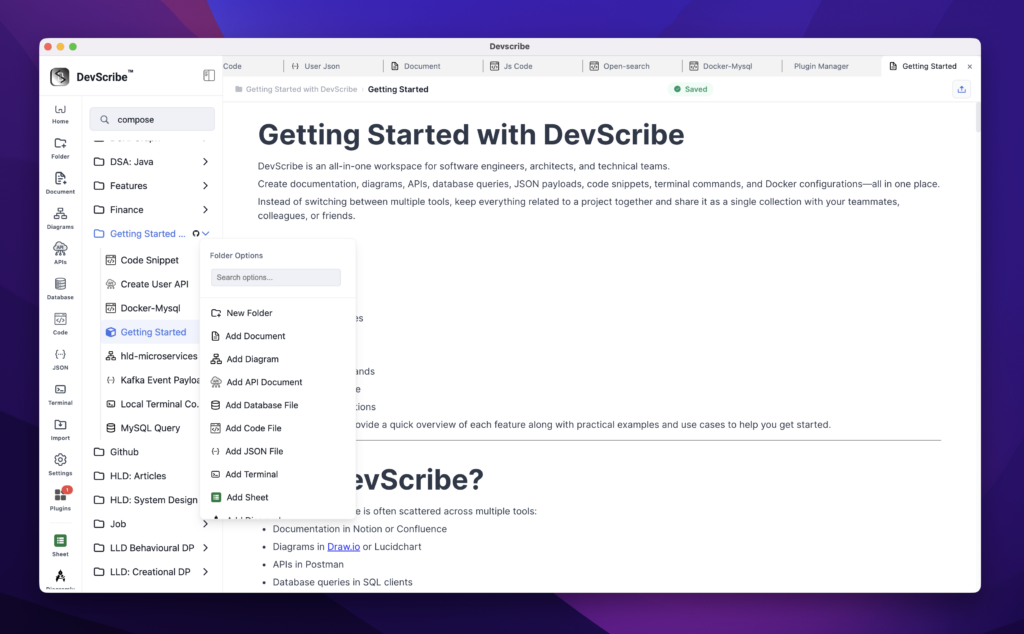
- Navigate to the folder where you want to create the code file.
- Click the horizontal three-dot (⋯) More Options menu next to the folder.
- Select Add Document.
Use Cases
- Project Documentation
- Business Requirements
- Architecture Decision Records (ADR)
- Engineering Notes
- Runbooks
- Troubleshooting Guides
- Team Knowledge Bases
- DSA Notes
- SQL, MongoDB, Redis, and OpenSearch Learning Notes
Features
- Rich Markdown Editor
- Structured Headings
- Code Blocks
- Tables
- Images and Videos
- File Attachments
- Embedded Project Artifacts
- Toggle Sections
- Internal Linking
Text Formatting & Document Structure
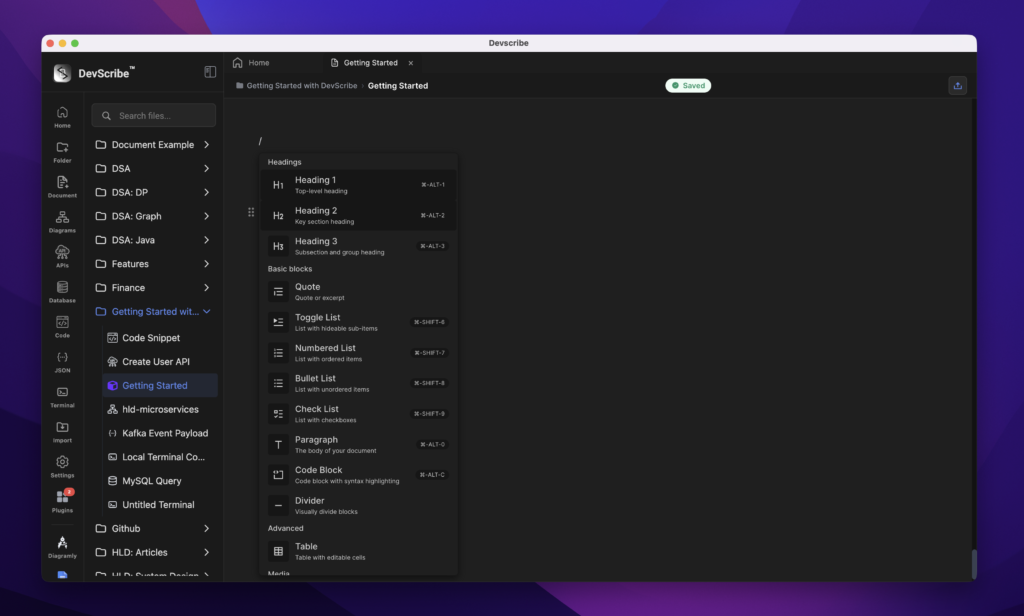
Use these blocks to create and organize documentation content.
Supported Blocks
- Heading 1 (H1)
- Heading 2 (H2)
- Heading 3 (H3)
- Paragraph
- Quote
- Divider
- Bullet List
- Numbered List
- Check List
- Toggle List
- Toggle Heading
How to Add
- Type
/ - Select the desired block
- Start writing content
Example Use Cases
- Project Overview
- Requirements Documentation
- Design Decisions
- Troubleshooting Guides
- Release Notes
Code Blocks
Code Blocks are designed for documenting source code, configuration files, commands, and examples directly within your documentation. They provide syntax highlighting for improved readability but are not executable.
Use Code Blocks when you want to explain an implementation, show sample code, or include configuration snippets as part of your documentation.
Note: If you want to execute code, use the Code Plugin and embed it into your document using Link File. This keeps your documentation dynamic while separating executable code from static reference content.
How to Add
- Type
/ - Select Code Block
- Choose the programming language
- Paste or write your code
Common Use Cases
- Code examples
- Configuration files
- SQL query samples
- Shell command examples
- YAML and Docker Compose snippets
- JSON payload examples
- API request and response samples
- Documentation snippets
Supported Languages
The Code Block supports syntax highlighting for many popular programming and markup languages, including Java, JavaScript, TypeScript, Python, C, C++, C#, Go, Rust, Kotlin, Swift, PHP, Ruby, SQL, HTML, CSS, XML, YAML, JSON, Bash, PowerShell, Markdown, Dockerfile, and many others.
Tables
Tables help organize structured information.
How to Add
- Type
/ - Select Table
- Configure rows and columns
Common Use Cases
- API Fields
- Database Schemas
- Configuration Values
- Feature Comparisons
Images, Videos & Media
Add visual content directly to your documentation.
Supported Media
- Images
- Videos
- Audio Files
- General Files
How to Add
- Type
/ - Select Image, Video, Audio, or File
- Upload your content
Common Use Cases
- Architecture Diagrams
- UI Screenshots
- Product Demos
- Training Videos
- Technical Recordings
Embedding Project Artifacts
One of the most powerful features of DevScribe is the ability to embed other project artifacts directly inside documentation.
Instead of linking to external tools, you can embed resources and make documentation interactive.
How to Add
- Type
/ - Search for Link File
- Select the file to embed
Supported Embeds
- Documents
- APIs
- Database Queries
- Code Files
- JSON Payloads
- Diagrams
- Terminal Sessions
- Docker Configurations
- External Integrations
Example
A User Service document can contain:
- Service Overview Documentation
- Architecture Diagram
- API Collection
- Database Queries
- Sample JSON Requests
- Docker Compose Setup
- Troubleshooting Commands
All accessible directly from a single page.
Toggle Sections
Toggle blocks help organize large documentation pages.
Supported Toggle Blocks
- Toggle Heading 1
- Toggle Heading 2
- Toggle Heading 3
- Toggle Lists
Common Use Cases
- FAQs
- Troubleshooting
- Deployment Guides
- Large Architecture Documents
Best Practices
- Use Heading 1 for major sections
- Use Heading 2 and Heading 3 for organization
- Keep diagrams close to explanations
- Embed APIs and database queries inside related documentation
- Use toggle sections for large documents
- Create a single source of truth by keeping all project artifacts together
With embedded APIs, diagrams, code snippets, database queries, and project files, DevScribe transforms traditional static documentation into a dynamic engineering workspace.
