
Working with PostgreSQL in DevScribe
PostgreSQL is a widely used relational database for building web applications, backend systems, and data-driven applications.
DevScribe’s Database Client supports PostgreSQL, allowing you to connect to a PostgreSQL database and work with it alongside the rest of your development workflow.
Connect to a PostgreSQL Database
To connect a PostgreSQL database in DevScribe:
- Open the Database plugin.
- Create a New Connection.
- Select Postgres as the database type.
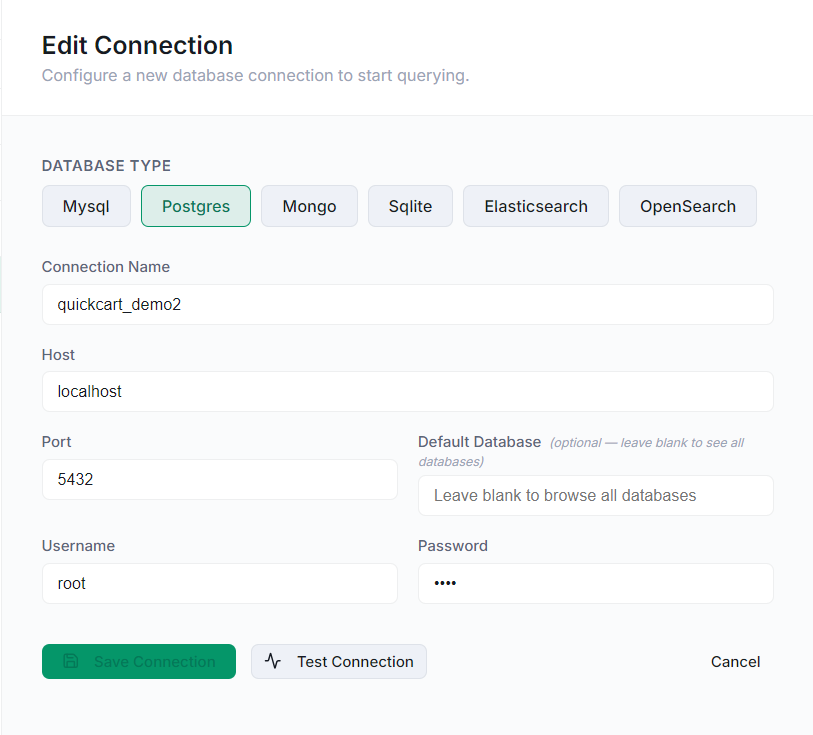
- Enter the connection details for your PostgreSQL database.
The connection form includes:
- Connection Name
- Host
- Port
- Default Database
- Username
- Password
The Default Database field is optional. You can leave it blank to browse all available databases.
Once the connection details are entered, use Test Connection to verify the connection before saving it.
Explore Your PostgreSQL Database
After connecting, your PostgreSQL database is available from the Database workspace.
You can explore the database structure and work with its tables and schemas directly from DevScribe.
This is useful when working with an existing application because you can inspect the database structure without leaving the same workspace where you’re working with your code, APIs, and documentation.
Run PostgreSQL Queries
DevScribe also provides a query workspace for working with your database.
You can write SQL queries to retrieve and inspect data from PostgreSQL.
For example:
SELECT * FROM accounts;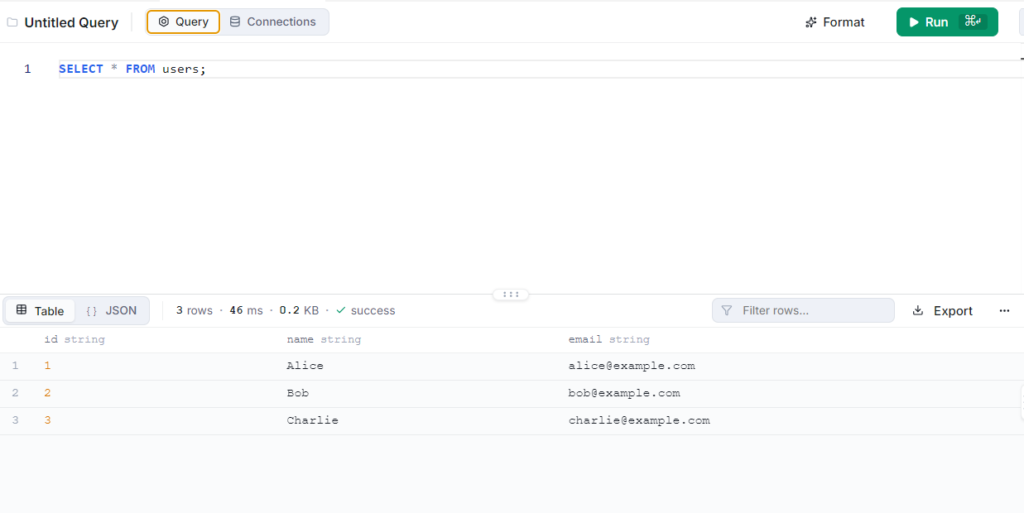
The query results can be viewed directly in DevScribe, making it easier to inspect database data while developing or debugging an application.
Visualizing the Database with an ER Diagram
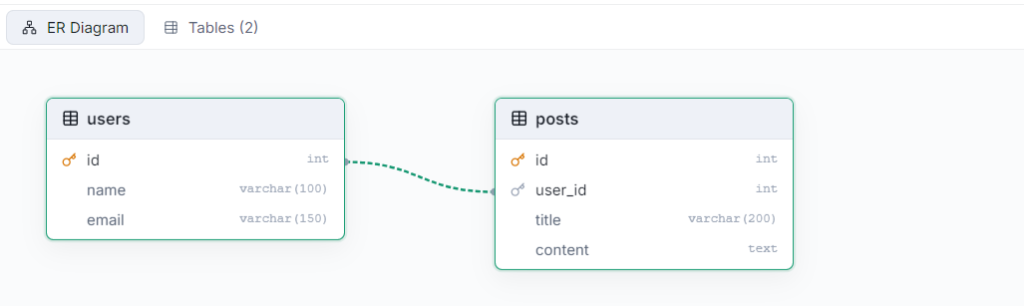
Understanding a relational database involves more than looking at individual tables. You also need to understand how those tables relate to one another.
An Entity-Relationship Diagram (ERD) provides a visual representation of the database structure, including:
- Entities and tables
- Columns
- Primary keys
- Foreign keys
- Relationships
An ER diagram can make a large PostgreSQL schema easier to understand and is useful when documenting an existing application or designing a new database structure.
Exploring the PostgreSQL Schema
PostgreSQL databases can contain multiple schemas, tables, columns, and relationships.
DevScribe lets you browse the database structure so you can understand how the application’s data is organized.
You can inspect elements such as:
- Schemas
- Tables
- Columns
- Indexes
- Relationships
This is particularly useful when working with an existing database and trying to understand its structure before writing or modifying queries.
Embed PostgreSQL Query in DevScribe
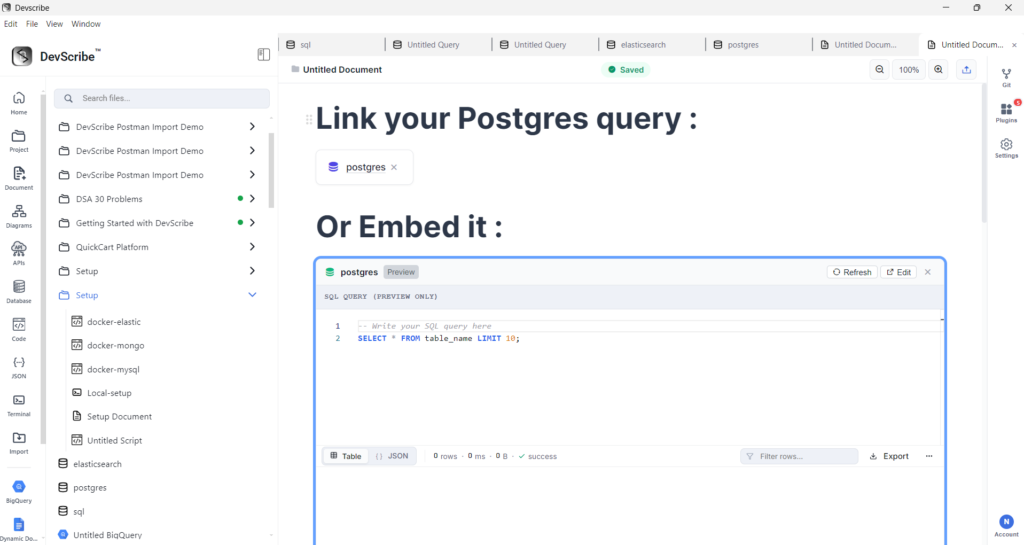
You can embed a PostgreSQL query directly into a DevScribe document to keep database operations alongside the documentation that describes them.
To embed a PostgreSQL query:
- Open the Document where you want to add the query.
- Place the cursor at the required location.
- Type
/to open the document command menu. - Search for
link file. - Select the PostgreSQL query resource from your project.
- DevScribe adds the query to the document as an embedded resource.
This is useful when documenting a PostgreSQL database because queries, schema information, and explanations can be kept together in the same document.
Why Use PostgreSQL in DevScribe?
Working with PostgreSQL in DevScribe can be useful when you need to:
- Explore an existing PostgreSQL database
- Inspect tables and schemas
- Run SQL queries
- Check data while developing an API
- Understand how an application interacts with its database
- Keep database work alongside documentation and other development resources
Conclusion
DevScribe’s Database Client brings PostgreSQL into the same workspace as your APIs, code, documentation, and other development tools.
Whether you’re exploring a database, running queries, or investigating how an application interacts with PostgreSQL, you can work with the database without leaving your DevScribe workspace.

Normally I don’t learn article on blogs, however I wish to say that this write-up very forced me to try and do it!
Your writing taste has been amazed me. Thanks, quite nice article.
Thank you so much for the kind words. I’m really glad the article resonated with you and encouraged you to give it a try. I truly appreciate you taking the time to share this