
Architecture Diagram Tool
The Diagram Plugin enables you to create professional engineering diagrams directly within DevScribe. Instead of using a separate diagramming tool and manually keeping screenshots up to date, DevScribe allows you to create, edit, and embed diagrams alongside your documentation, APIs, database queries, code files, and other project artifacts.
Whether you’re documenting a production system, preparing for a system design interview, or designing a new application, the Diagram Plugin helps you visualize complex architectures using an intuitive drag-and-drop editor with ready-to-use components.
The Diagram Plugin supports two types of diagrams:
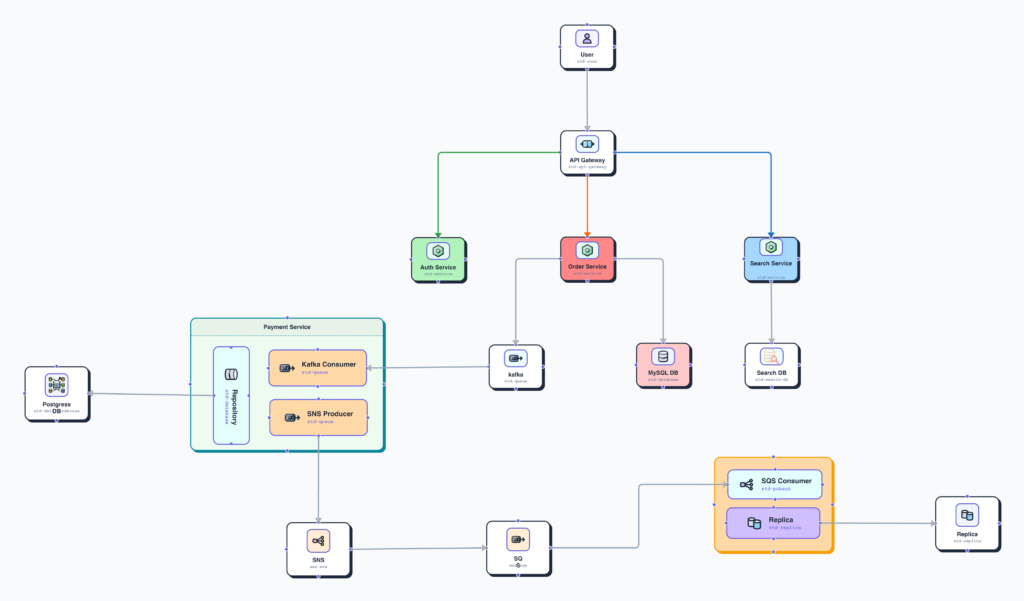
🏗️ System Design Diagrams
Create professional architecture diagrams for designing and documenting software systems. Build High-Level Designs (HLD), Low-Level Designs (LLD), microservice architectures, cloud architectures, database designs, flow charts, UML diagrams, and more using drag-and-drop components such as services, APIs, databases, load balancers, Kafka, Redis, AWS, GCP, and other infrastructure elements.
These diagrams are ideal for:
- Project documentation
- System design interviews
- Architecture reviews
- Production architecture
- Technical design documents
- Engineering knowledge sharing
🔄 Sequence Diagrams
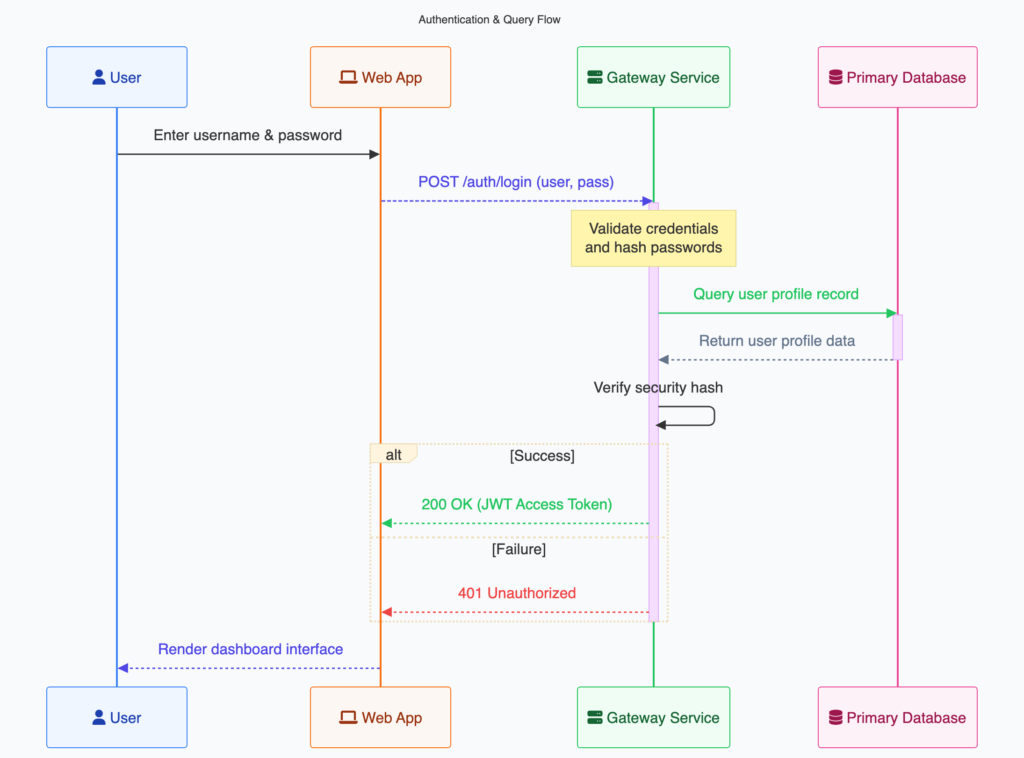
Visualize how different services, applications, and users communicate over time using sequence diagrams. Easily model request flows, API interactions, service communication, authentication flows, and other runtime behaviors to better explain how a system works.
Sequence diagrams are ideal for:
- API request flows
- Microservice communication
- Authentication workflows
- Event-driven architectures
- Business process documentation
- Debugging complex interactions
Dynamic Engineering Documentation
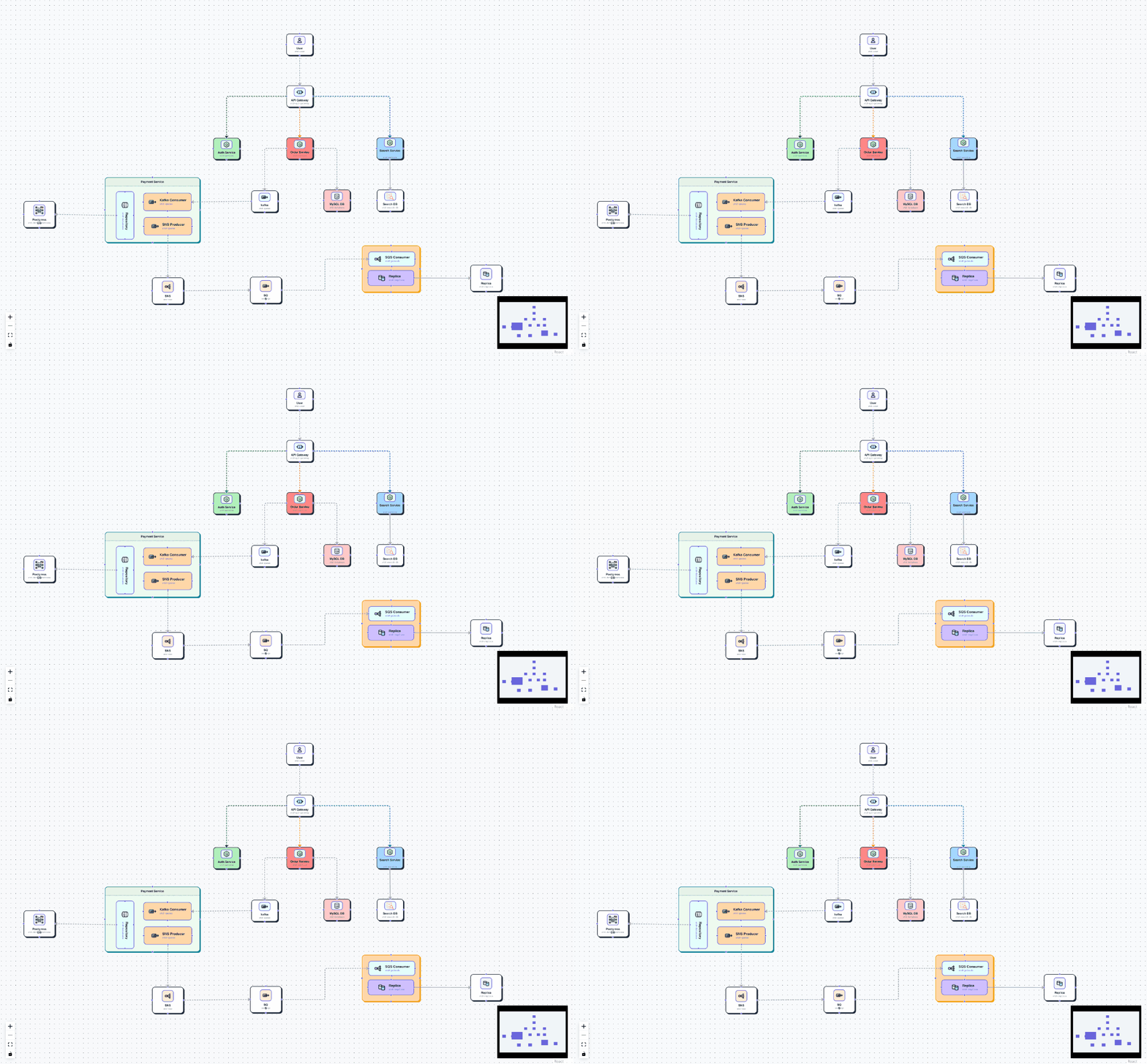
Diagrams can be embedded directly into your documentation, allowing architecture, design decisions, implementation details, and supporting resources to live together in a single document.
When a diagram is updated, every embedded instance automatically reflects the latest version. This eliminates the need to export screenshots or maintain separate copies, ensuring your documentation always stays synchronized with your system design.
Learn More
Continue with the following guides to get the most out of the Diagram Plugin:
- Creating a Diagram
- Diagram Types
- Working with Components
- Editing Diagrams
- Embedding Diagrams
