
Editing Diagrams
Learn how to navigate the canvas, manage history state, use hotkeys, and check auto-save statuses inside ArchFlow.
1. Canvas Navigation
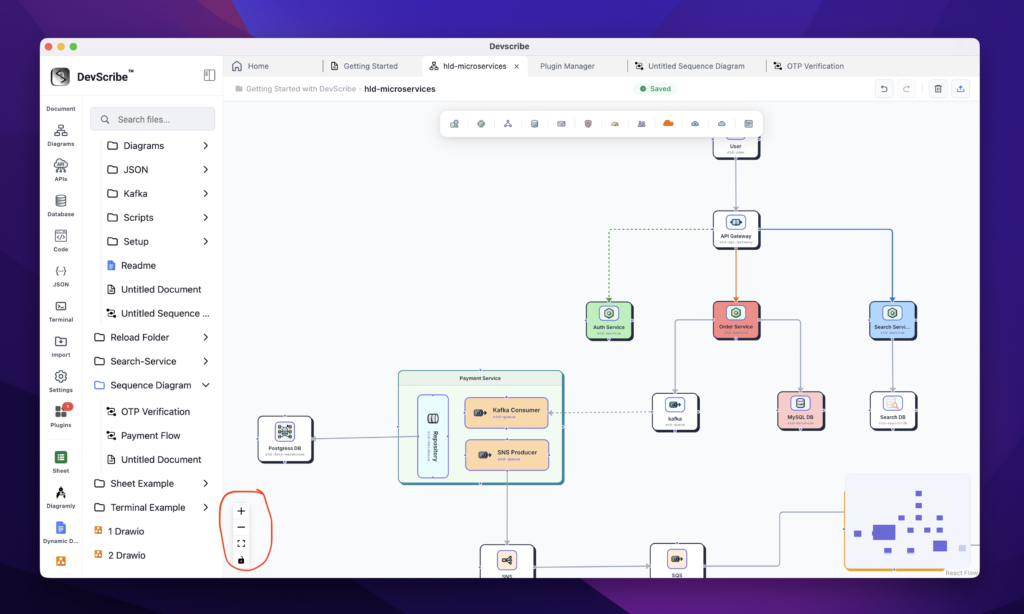
- Panning: Click and hold the left mouse button (on an empty canvas area) or hold the Spacebar, then drag to pan around.
- Zooming: Use your mouse scroll wheel, pinch to zoom on a trackpad, or double click to zoom in.
- Minimap: A small helper minimap is visible in the bottom-right corner of the editor window, showing your canvas location.
2. History & Undo/Redo
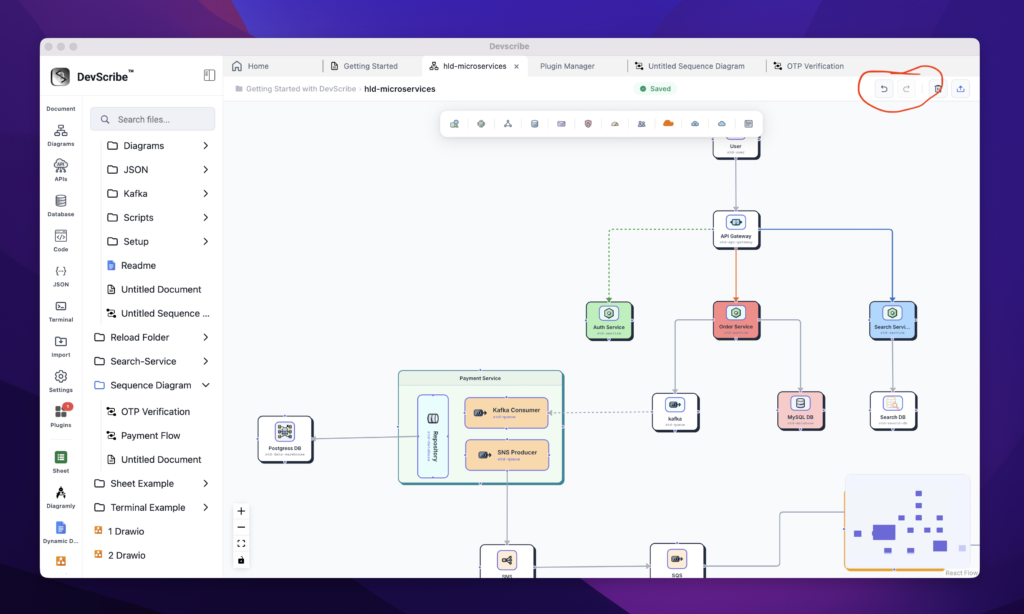
ArchFlow records a local history of state changes (node creations, dragging operations, line styling, deletions, etc.).
- Undo: Revert your last action by clicking the Undo arrow in the top bar or pressing
Cmd/Ctrl + Z. - Redo: Restore a reverted action by clicking the Redo arrow in the top bar or pressing
Cmd/Ctrl + Shift + Z.
3. Keyboard Shortcuts
Maximize your diagramming efficiency with built-in hotkeys:
| Shortcut | Action | Description |
|---|---|---|
Cmd/Ctrl + Z | Undo | Reverts the last layout or style modification. |
Cmd/Ctrl + Shift + Z | Redo | Re-applies the last undone step. |
Cmd/Ctrl + C | Copy | Copies the selected element(s) and their active connections to the clipboard. |
Cmd/Ctrl + V | Paste | Pastes the copied elements onto the canvas, shifted by +40px offset for readability. |
Backspace / Delete | Delete | Deletes all selected nodes, connectors, and relations. |
[!IMPORTANT]
Keyboard shortcuts are automatically disabled when you are typing inside any input text fields or textareas (such as custom element labels) to prevent accidental deletions or actions.
4. Auto-Saving Integration
The plugin saves your data automatically without manual key triggers:
- Every node drag-stop, connection link, and styling adjustment pushes updates to the parent DevScribe system database.
- Status Indicators (located in the top bar center):
Saved: All changes are synced and saved to the database.Saving: An update transaction is in progress.Save Error: The update failed. You can retry saving manually by pressingCtrl/Cmd + S.
