
External Plugins
Installing Plugins
One of the nice things about DevScribe is that you don’t have to stop at the tools that come with the application. Plugins let you add more functionality to your workspace, whether you need another developer tool, a different way to visualize data, or a completely new workflow.
DevScribe has a Plugin Manager where you can browse available plugins and install them directly from the Plugin Store.
This page walks you through finding and installing a plugin, and explains what the different sections of the Plugin Manager are used for.
Opening the Plugin Manager
To open the Plugin Manager:
- Open your DevScribe workspace.
- Click Plugins in the right-side toolbar.
- The Plugin Manager will open.
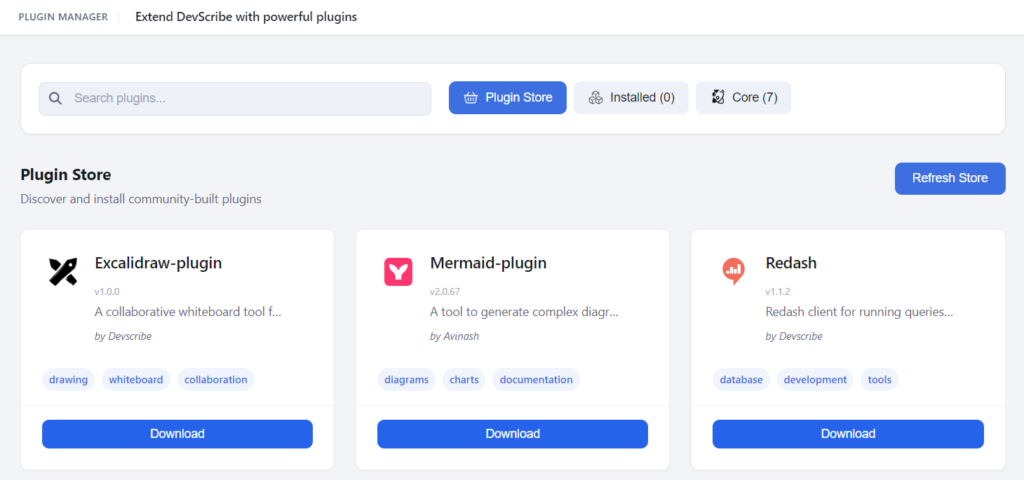
The Plugin Manager has three sections:
- Plugin Store: Browse and install community-built plugins.
- Installed: View the plugins you have installed.
- Core: View the plugins that come with DevScribe.
When you first open the Plugin Manager, you’ll see the Plugin Store.
Exploring the Plugin Store
The Plugin Store is where you can browse community-built plugins and find tools that add new capabilities to your DevScribe workspace.
Plugins are displayed as cards, so you can quickly look through the available options.
Each plugin card can show:
- Name: The name of the plugin.
- Version: The version currently available in the store.
- Description: A short explanation of what the plugin does.
- Author: The person or team that published the plugin.
- Tags: Keywords describing the plugin and its purpose.
- Download: The button used to install the plugin.
For example, the Plugin Store can contain plugins such as Excalidraw-plugin, Mermaid-plugin, Redash, BigQuery, Dynamic Document, and Diagramly.
The tags are useful when you’re browsing because they give you a quick idea of what a plugin is designed for without having to open every plugin.
Finding a Plugin
If you’re looking for something specific, you don’t need to scroll through the entire store.
Use the Search plugins… field at the top of the Plugin Manager to find a plugin by name or keyword.
For example, if you’re looking for a diagramming tool, you can search for a plugin related to diagrams instead of browsing the entire store.
Refreshing the Plugin Store
The Plugin Store includes a Refresh Store button.
Use it to refresh the list of plugins shown in the store. This can be useful if you’re expecting a plugin to appear but don’t see it in the current list.
Installing a Plugin
Once you’ve found a plugin you’d like to use, installing it is straightforward.
- Open Plugins from the right-side toolbar.
- Make sure you’re on the Plugin Store tab.
- Find the plugin you want to install.
- Check its name, version, description, author, and tags.
- Click Download on the plugin card.
DevScribe will install the selected plugin.
After installation, the plugin can be found under the Installed section of the Plugin Manager.
Understanding Plugin Types
You’ll come across two main types of plugins in the Plugin Manager: community plugins and core plugins.
Community Plugins
Plugins available in the Plugin Store are community-built plugins that you can choose to install.
For example, a plugin card may show:
Mermaid-plugin
v2.0.67
by Avinash
The card also includes tags such as diagrams, charts, and documentation, giving you a quick idea of what the plugin is meant for.
Core Plugins
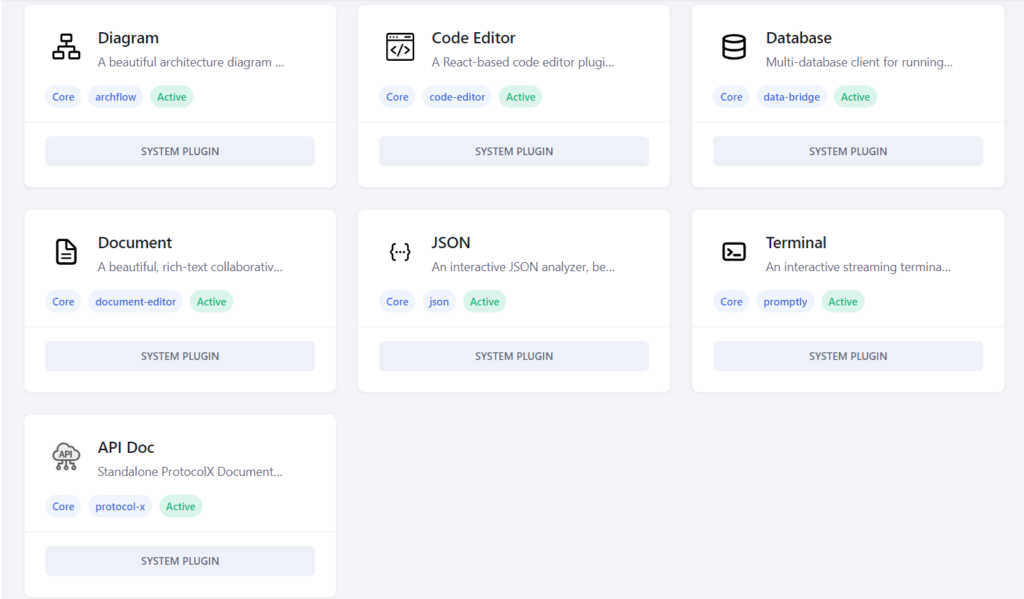
DevScribe also has a set of Core Plugins that come built into the application.
You can see them by opening the Core tab in the Plugin Manager.
Core plugins include the main tools used throughout DevScribe, such as:
- Document
- Diagram
- Code Editor
- Database
- API Doc
- JSON
- Terminal
These plugins are marked with labels such as Core, Active, and System Plugin in the Plugin Manager.
You don’t need to download core plugins from the Plugin Store. They are already part of DevScribe.
Choosing a Plugin
Before installing a community plugin, take a moment to look at the information on its card.
The description tells you what the plugin is designed to do, while the tags give you a quick idea of its category or use case. The version tells you which release is available, and the author tells you who published it.
This is especially helpful when you find multiple plugins that seem to do similar things.
Plugin Manager at a Glance
Here’s a quick overview of what you’ll find in the Plugin Manager:
| Section | Purpose |
|---|---|
| Plugin Store | Browse and install community-built plugins |
| Installed | View plugins you’ve installed |
| Core | View DevScribe’s built-in plugins |
| Search plugins | Find a plugin in the store |
| Refresh Store | Refresh the available plugin list |
What’s Next?
Once you’ve installed a plugin, you can access it from your DevScribe workspace.
Want to build your own plugin? DevScribe provides window.pluginAPI, which allows plugins to interact with DevScribe features such as files, code execution, databases, terminals, API requests, and notifications.
See Building a DevScribe Plugin and AI Context to build Plugins for the developer documentation and technical reference.
