
Creating a Code File
The Code Plugin enables you to write, execute, and organize code directly within DevScribe. Whether you’re preparing for coding interviews, managing development utilities, or running infrastructure scripts, your code stays connected with the rest of your project documentation.
How to Create
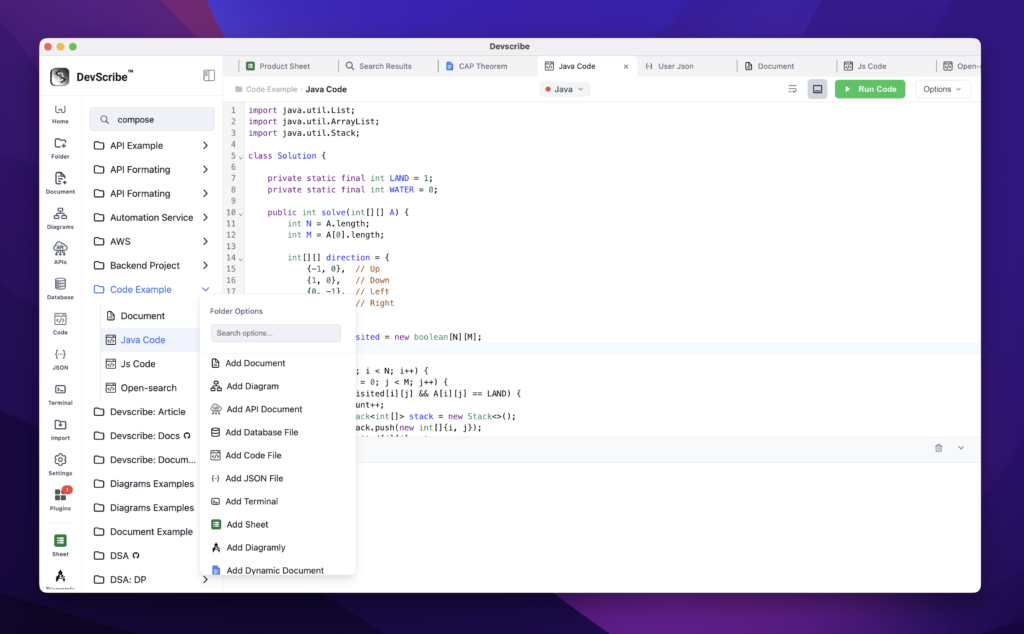
- Navigate to the folder where you want to create the code file.
- Click the horizontal three-dot (⋯) More Options menu next to the folder.
- Select Add Code.
The new code file will be added to the selected folder and opened automatically in the Code Plugin, where you can immediately start writing and executing your code.
Choosing a Programming Language
Each code file can be configured to use a different programming language.
To change the language:
- Open the code file.
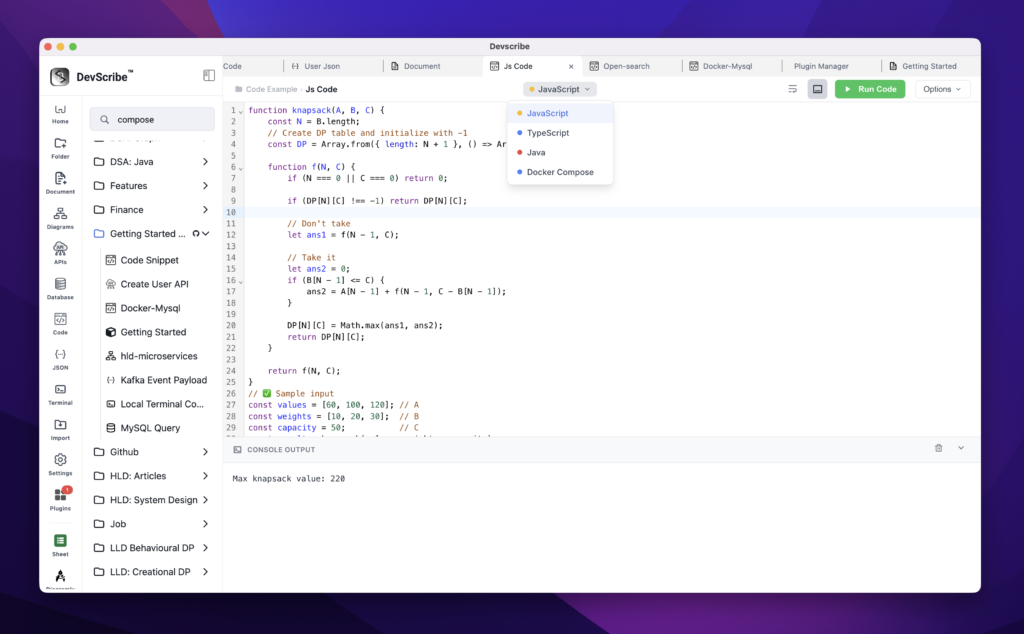
- Click the Language dropdown at the top of the editor.
- Select the programming language you want to use.
The editor automatically updates syntax highlighting and execution settings based on the selected language.
Supported Languages
- Java
- JavaScript
- TypeScript
- Docker Compose
After selecting a language, you can immediately start writing and executing your code using the Code Plugin.
Other Supported File Types
In addition to executable languages, the editor also provides syntax highlighting and editing support for:
- JSON
- YAML
- Markdown
- Plain Text
These file types are intended for editing and documentation purposes only and are not executable within the Code Plugin.

How to execute Python code. I see no dropdown for Python language.
Thanks for your question, Prasad!
Currently, DevScribe supports Java, JavaScript, TypeScript, and Docker Compose in the Code Editor. Python support hasn’t been added yet.
I’m planning to add a dedicated Python plugin by the end of this month. Once it’s available, I’ll let you know via email.
Thanks for your interest and for trying out DevScribe! 🙂