
Embedding Code Files
Code files can be added to your documentation in two ways: Link or Embed. Choose the option that best fits your documentation.
Linking a Code File
Use Link when you simply want to reference a code file from your documentation.
How to Link
- Open the document where you want to add the code file.
- Type
/. - Select Link File.
- Search the code file.
- Select Link.
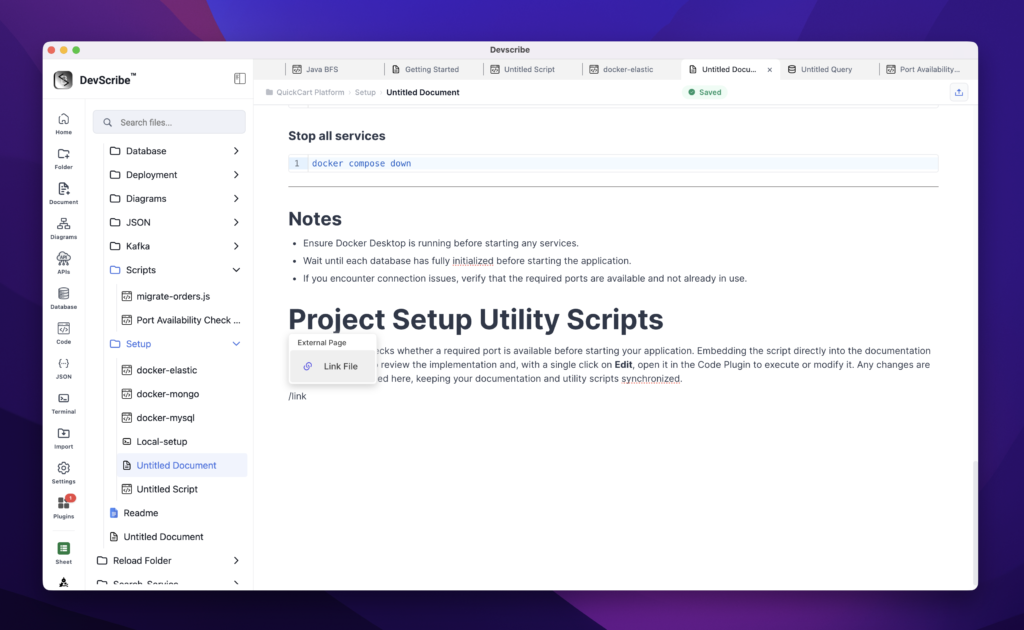
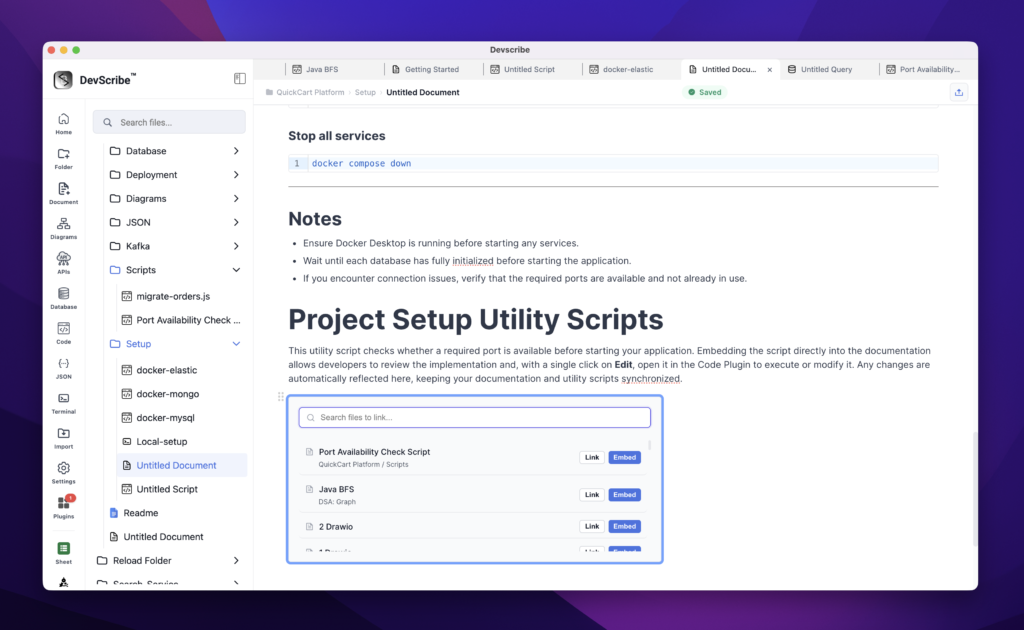
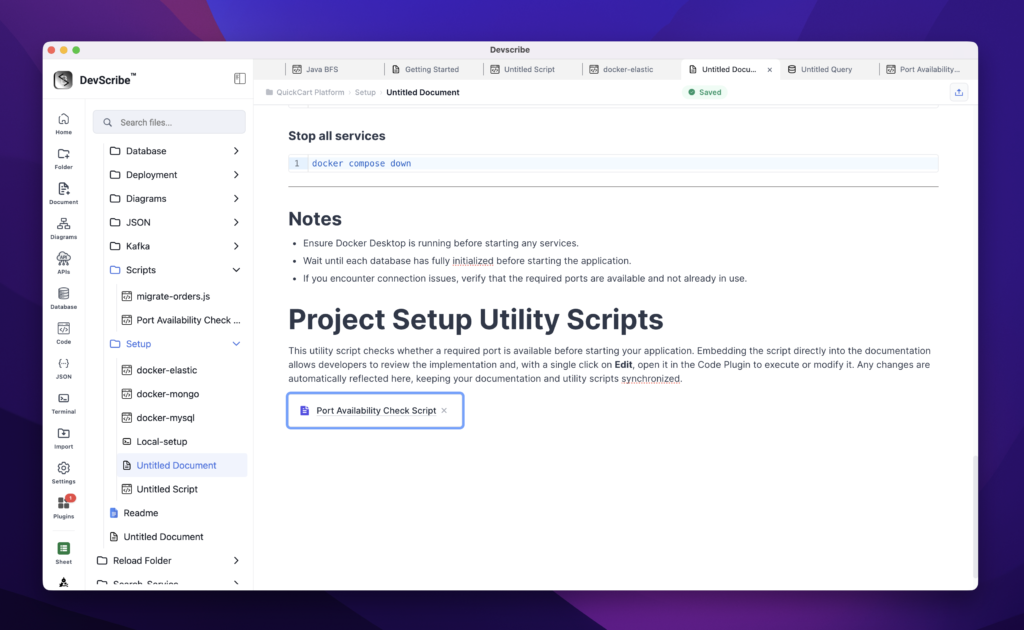
A clickable link is added to the document. Clicking the link opens the code file in the Code Plugin.
Embedding a Code File
Use Embed when you want to display the code directly inside your documentation.
How to Embed
- Open the document where you want to add the code file.
- Type
/. - Select Link File.
- Search the code file.
- Select Embed.
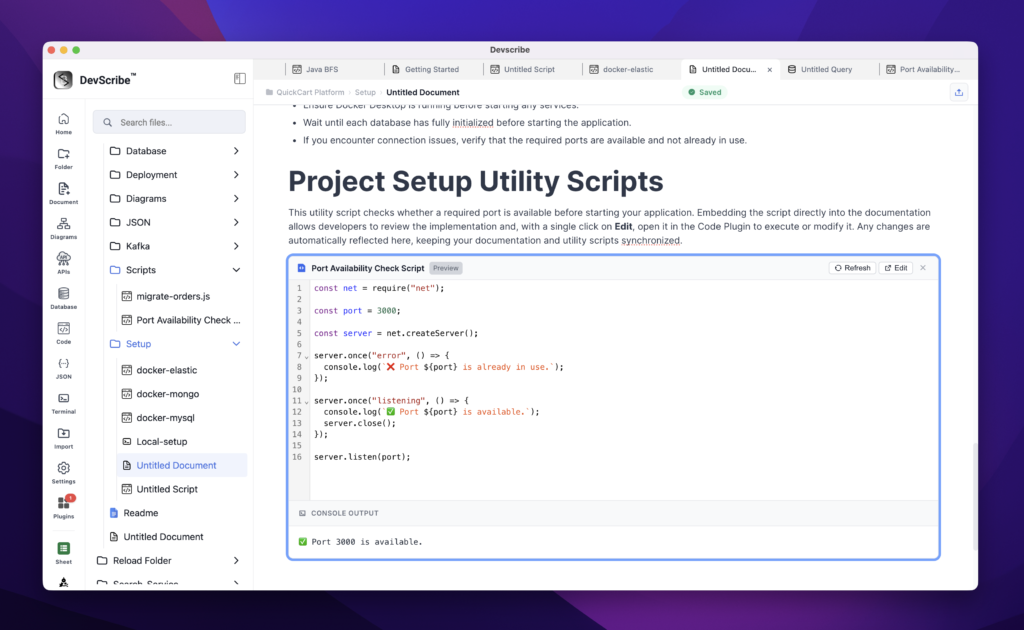
The code file is displayed directly within the document, providing a preview of the implementation. Readers can click Edit to open the file in the Code Plugin, execute or modify the code, and save their changes. Since the embedded view references the original file, any updates are automatically reflected in the documentation.
