Docker Compose Files
The Code Plugin allows you to create, execute, and maintain Docker Compose files alongside your project documentation, architecture diagrams, APIs, and database queries. Keeping your infrastructure configuration in the same workspace makes project setup, onboarding, and deployment significantly easier.
Common use cases include local development environments, database setup, Kafka and Redis clusters, microservice development, integration testing, and demo environments.
Creating a Docker Compose File
Create Docker Compose files just like any other code file in DevScribe.
How to Create
- Navigate to the folder where you want to create the Docker Compose file.
- Click the horizontal three-dot (⋯) More Options menu next to the folder.
- Select Add Code.
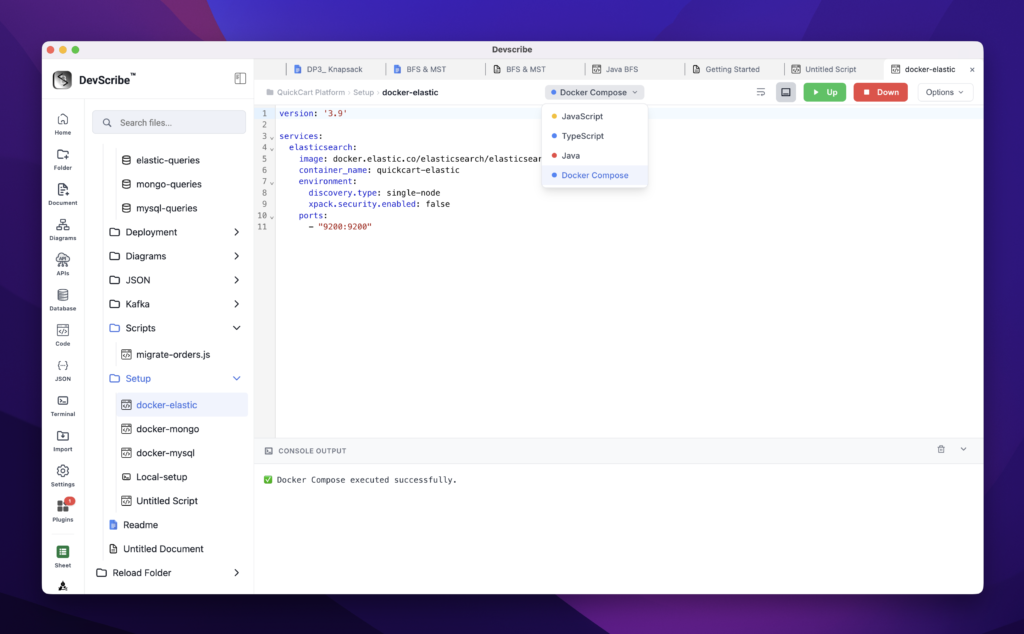
- Open the Language dropdown in the Code Editor.
- Select Docker Compose.
The editor is now configured for Docker Compose, allowing you to start writing your docker-compose.yml configuration.
Running a Docker Compose File
Once your Docker Compose configuration is ready, you can execute it directly from the Code Plugin.
How to Run
Once your Docker Compose configuration is ready, you can start and stop your local services directly from the Code Plugin.
Starting Services
- Open the Docker Compose file.
- Click the Up button.
- DevScribe executes the Docker Compose configuration on your local machine.
- Monitor the startup process and logs directly within the editor.
Stopping Services
If the Docker Compose services are already running:
- Click the Down button.
- DevScribe stops and removes the containers defined in the Docker Compose file.
- Review the execution logs directly within the editor.
This allows you to manage your complete local development environment without switching to a separate terminal or Docker management tool.
Embedding Docker Compose in Documentation
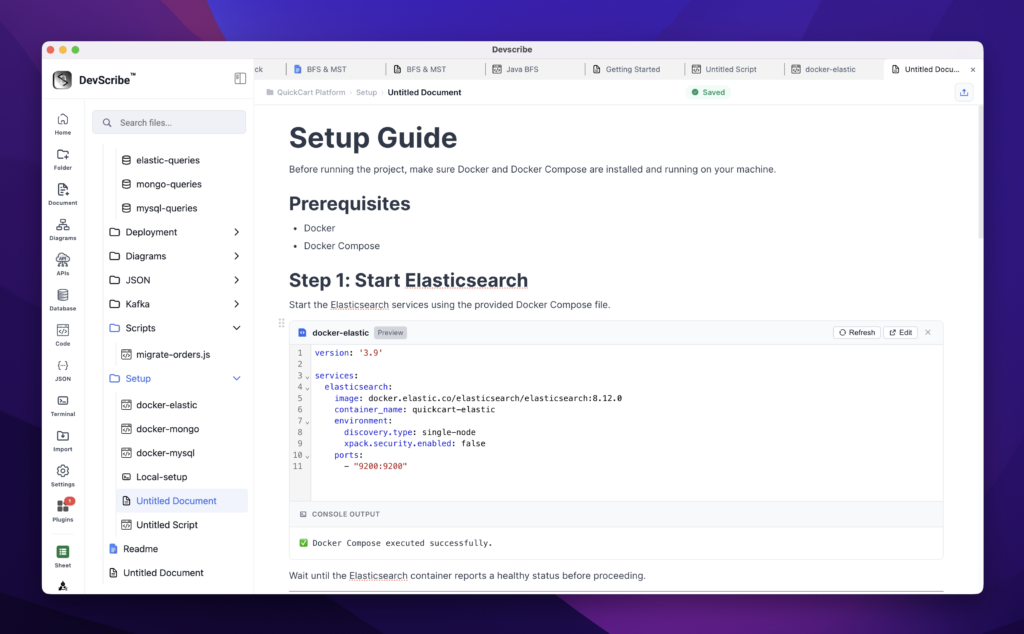
Docker Compose files can be embedded directly into your documentation, allowing setup instructions and infrastructure configurations to stay synchronized with the actual configuration.
How to Embed
- Open the documentation where you want to include the Docker Compose file.
- Type
/. - Select Link File.
- Choose the Docker Compose file as Embed.
The configuration is embedded directly into the document. If you later update the Docker Compose file, the embedded version is automatically updated since both reference the same underlying file.