
Working with MySQL in DevScribe
Once a database has been connected to DevScribe, you can create database query resources and execute them directly against the connected database.
The Database Doc Tool allows you to keep queries within your project, run them using an existing database connection, and inspect the results without switching to a separate database client.
Prerequisites
Before running a query, make sure that:
- A database connection has been added to DevScribe.
- The connection is active and accessible.
- You have the required permissions to execute queries on the database.
If you haven’t configured a connection yet, see Adding a Database Connection in DevScribe.
Select the Database Connection
Before creating a query, add the database connection that DevScribe will use to execute it.
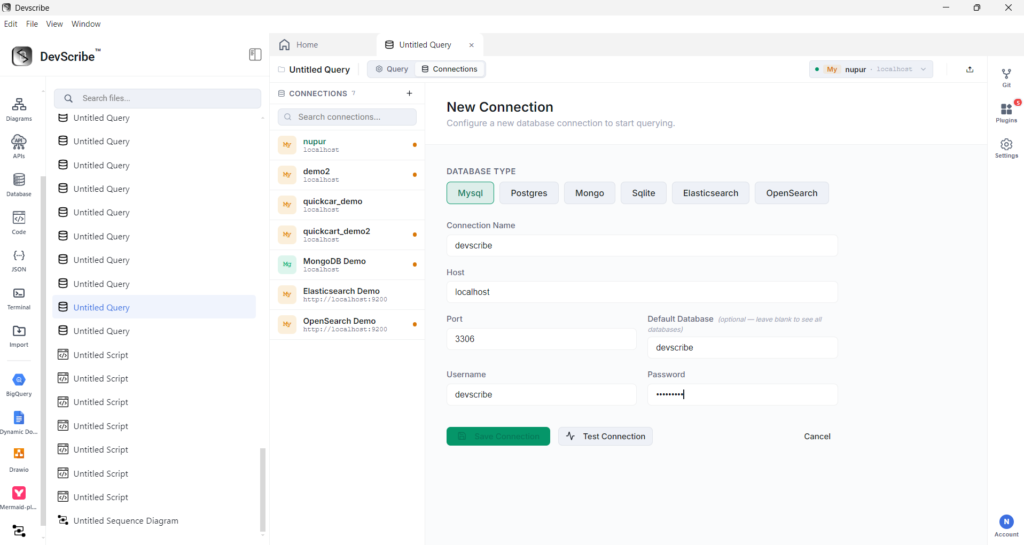
From the Database workspace, create a new database connection and select the database type you want to work with.
Depending on the database, you may need to provide connection details such as:
- Host
- Port
- Database name
- Username
- Password
For example, a MySQL connection can use:
Host: localhost
Port: 3306
Database: devscribe
Username: devscribe
Password: devscribe
Enter the details for your database and establish the connection.
Create a Database Query
From the Database workspace, create a new database query resource.
A query resource is associated with a database connection and can be used to store a database operation within your DevScribe project.
Give the query a descriptive name so that it can be easily identified later.
For example:
DB: Example
├── Get Users
├── Insert Users
├── Create Index
└── MySQL Query
Keeping individual operations as separate resources makes frequently used queries easier to locate and manage.
Add Your Query
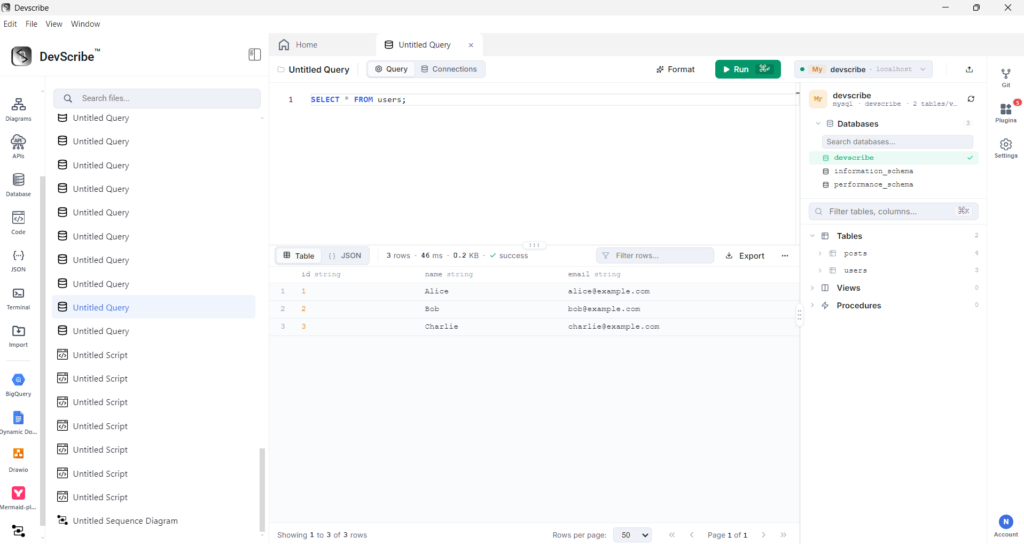
Enter the required SQL statement in the query editor.
For example, a simple query can be used to retrieve records from a table:
SELECT * FROM users;The query editor allows you to review and modify the statement before executing it.
Note: The query itself depends on the database and the operation you want to perform. DevScribe provides the workspace for creating and executing the query; the SQL syntax is determined by the database system being used.
Execute the Query
Once the query is ready, execute it from the query workspace.
DevScribe sends the query to the selected database connection and processes the response.
View the Results
After the query has been executed successfully, the results are displayed within the workspace.
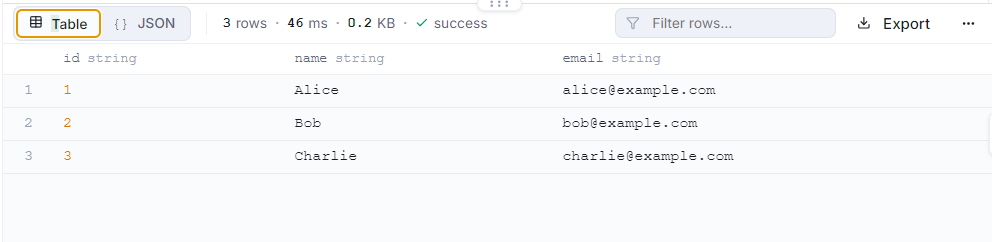
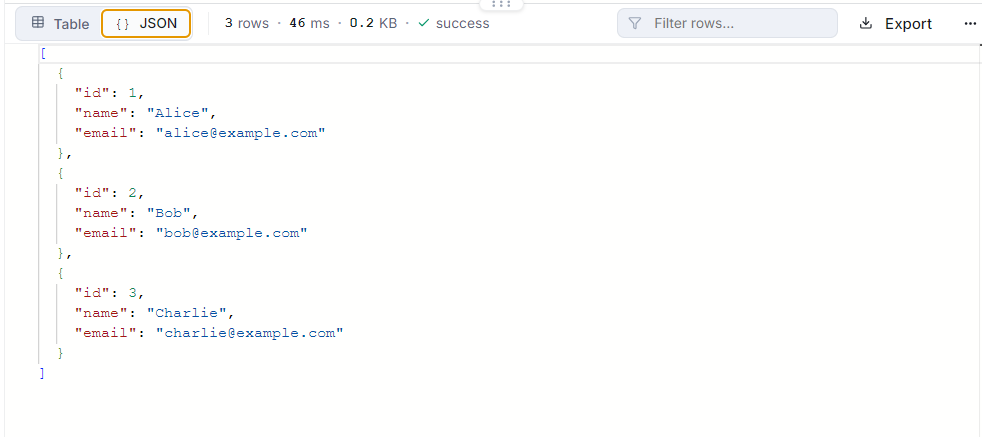
For a query that returns records, the results can be inspected directly in the result view. You can view your results in both table and json format.
For example:
Modify and Re-run Queries
Queries can be edited whenever you need to change the operation being performed.
After modifying a query, execute it again to retrieve updated results.
This makes the query resource useful not only for one-time operations but also for developing and testing database queries during development.
Keep Queries Organized
Database queries remain available as resources within your project.
You can organize different operations as separate query files, for example:
DB: Example
├── Create Index
├── Get Users
├── Insert Users
├── Mongo Query
└── MySQL Query
This provides a central place for commonly used database operations and makes them easier to revisit later.
Query Workflow
The complete process can be summarized as:
Create Query
Select Connection
Add Query
Execute
View Results
Modify & Re-run
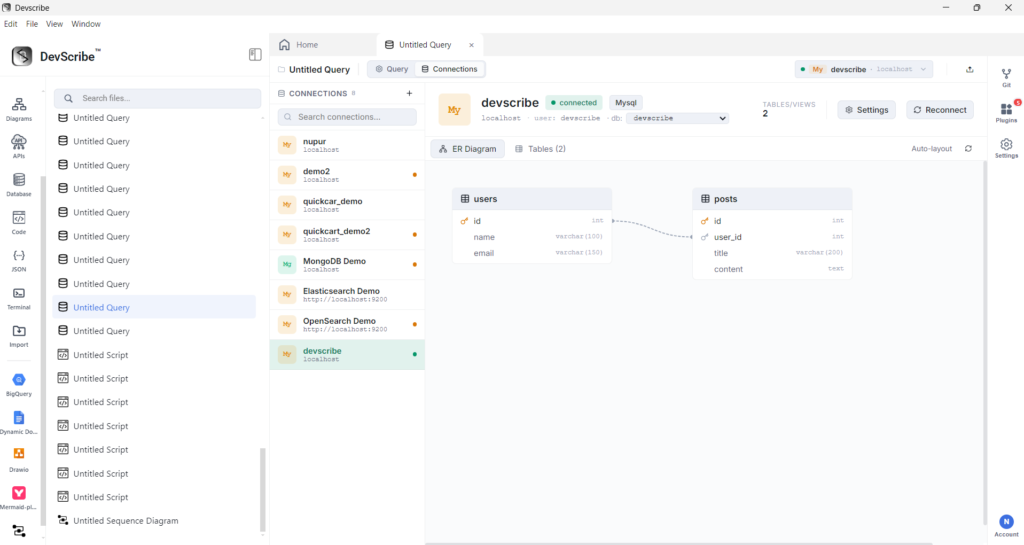
View the Database Schema and ER Diagram
For relational databases, understanding the database structure is just as important as running queries.
DevScribe lets you explore the database schema and visualize relationships between tables through an Entity-Relationship Diagram (ERD).
The ER diagram can help you understand:
- Tables in the database
- Columns and fields
- Primary keys
- Foreign keys
- Relationships between tables
For example, a database containing users and posts can be represented visually to show how the posts table is related to the users table.
DevScribe’s Database Doc Tool provides a straightforward workflow for working with database queries within your development workspace.
Once a connection is configured, you can create query resources, associate them with the appropriate database, execute them, and inspect their results all while keeping the queries organized alongside the rest of your project.
Embed MySQL Query in DevScribe
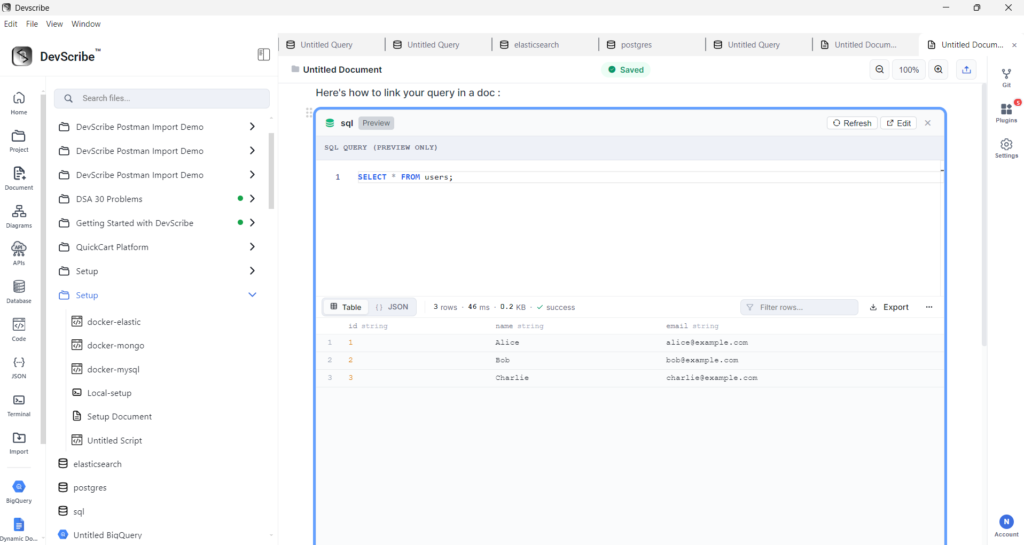
DevScribe lets you embed database resources directly into your documents, so database queries and information can be kept alongside the documentation for your project.
To embed a MySQL query:
- Open the Document where you want to add the database resource.
- Place the cursor where you want the query to appear.
- Type
/to open the document command menu. - Search for
link file. - Select the MySQL query resource from your project.
- The query is added directly to the document as an embedded resource.
Once embedded, the MySQL query can be kept alongside explanations, database documentation, and other project information. This makes it easier to reference the query while documenting how your application interacts with its MySQL database.
Here’s a walk through
