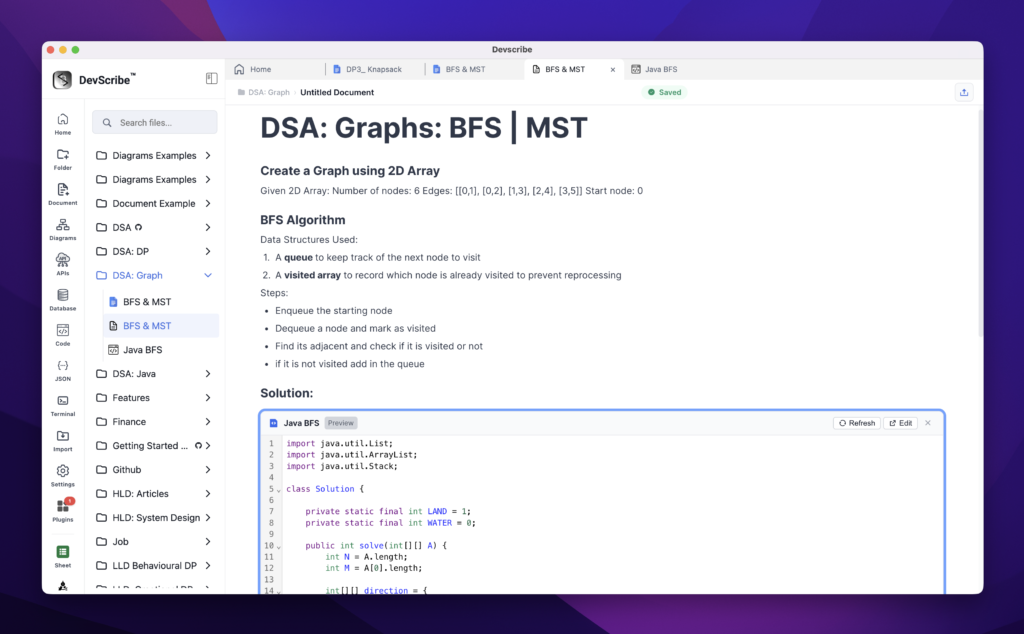
DSA Notes & Practice
The Code Plugin provides a dedicated workspace for practicing Data Structures & Algorithms (DSA) while keeping your notes and executable code together in one place.
Instead of maintaining notes in one application and solving problems in another, DevScribe allows you to organize your complete DSA journey in a single collection. Document the problem statement, capture your approach, implement the solution, execute the code, and record time and space complexity—all within the same workspace.
As your collection grows, you can easily revisit previously solved problems, review important concepts, compare different implementations, and refresh your understanding before coding interviews or assessments.
You can also solve the same problem in multiple programming languages, making it easy to compare implementations and strengthen your understanding.
Whether you’re preparing for coding interviews, practicing daily, or building a long-term DSA knowledge base, DevScribe helps you organize your notes, execute your solutions, and revisit them anytime from a single workspace.
Creating a DSA Practice File
Create a DSA solution just like any other code file in DevScribe.
How to Create
- Navigate to the folder where you want to create the practice file.
- Click the horizontal three-dot (⋯) More Options menu next to the folder.
- Select Add Code.
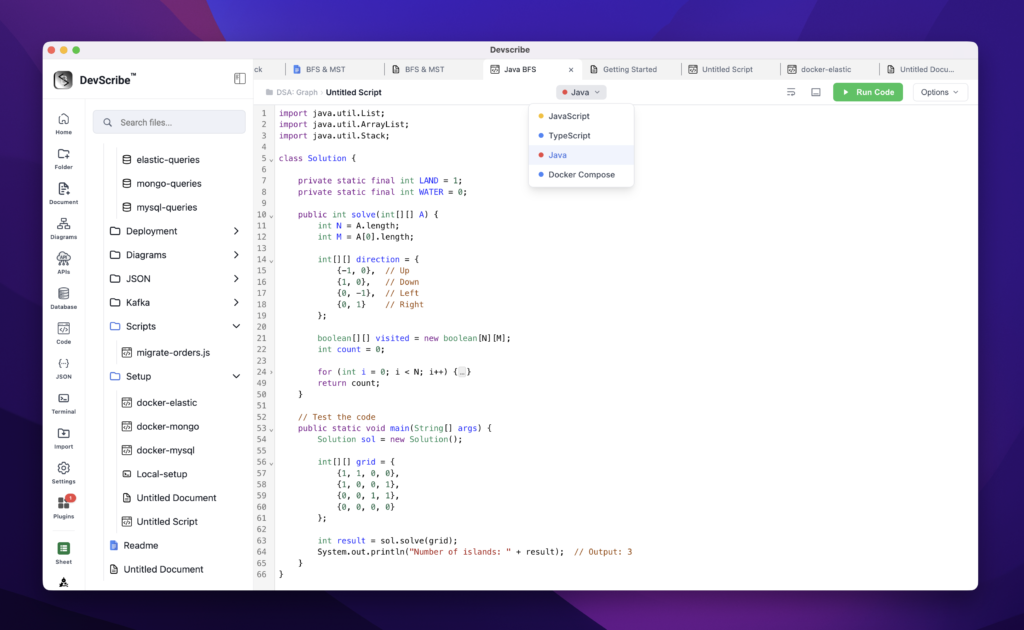
- Open the Language dropdown in the Code Editor.
- Select the programming language you want to use.
Supported Languages
- Java
- JavaScript
- TypeScript
The editor is now configured for the selected language, allowing you to start solving DSA problems immediately.
Running Your Solution
Once you’ve implemented your solution, you can execute it directly from the Code Plugin.
How to Run
- Write your implementation.
- Click the Run button.
- DevScribe executes your solution.
- Review the output directly within the editor.
- Update your implementation and run it again whenever needed.
This allows you to practice DSA without switching to an external IDE or online coding platform.
Embedding DSA Solutions in Documentation
DSA solutions can be embedded directly into your documentation so your notes and executable code always stay together.
How to Embed
- Open the documentation where you want to include the solution.
- Type
/. - Select Link File.
- Choose the DSA code file and select Embed.
The solution is embedded directly into the document. If you later update the implementation, the embedded version is automatically updated since both reference the same underlying file.
This creates a complete learning workspace where the problem statement, approach, executable code, complexity analysis, and revision notes all live together in a single document, eliminating the need to switch between a notes application and a separate coding platform.