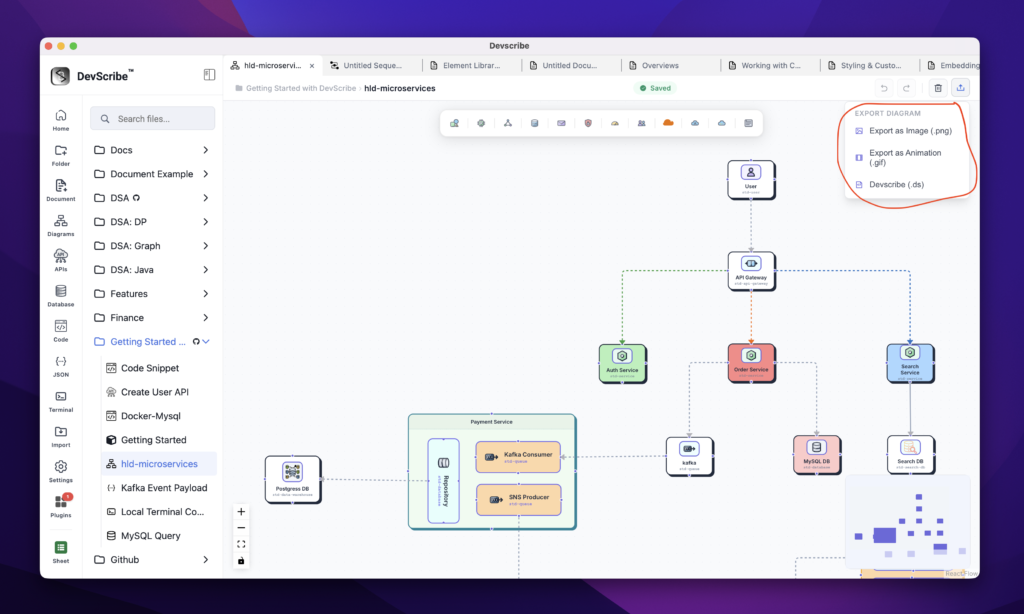
Sharing & Exporting Diagrams
ArchFlow provides several built-in mechanisms to export, backup, and share your architecture diagrams.
1. Exporting as Image (.png)
Generate a high-resolution, static snapshot of your diagram:
- How it works: Click on the Export options button (upload icon) in the top-right bar and select Export as Image (.png).
- Automatic Sizing: ArchFlow automatically scans all nodes to compute the bounding box. It adds a standard padding margin (+100px), scales the transform matrix to 1:1, and generates a cropped snapshot containing the entire diagram.
- Theme matching: The output image background is colored slate dark (
#1e2030) if you are currently in Dark Mode, or slate light (#f8fafc) if you are in Light Mode.
2. Exporting as Animated GIF (.gif)
Capture live flow animations for documents or presentation slides:
- How it works: Select Export as Gif (.gif) from the export dropdown menu in the top bar.
- Recording Process: ArchFlow will initiate a 2-second capture pipeline:
- It automatically pauses default CSS transitions.
- It captures a series of 20 frames (stepping the connector stroke dash offsets by
-3pxper frame to simulate seamless motion). - A progress wheel is shown on-screen during recording and compilation.
- The frames are compiled using the
gifshotencoder into a looping, high-performance GIF file. - Live CSS transitions resume automatically once the download starts.
3. Exporting as DevScribe Document Schema (.ds)
Backup your raw diagram data schema for sharing across files or different DevScribe workspaces:
- How it works: Select Devscribe (.ds) from the export dropdown menu.
- Data Content: This downloads a raw JSON payload containing the complete nodes array, connection edges array, viewport scales, and document version metadata.
- Backup: Keep this file as a backup. You can copy the contents of this file to restore state or import layouts directly into other plugins.