Adding your plugin to Devscribe plugin store
Have you built a plugin that you want to make available to other DevScribe users?
Once your plugin is ready and tested locally, you can add it to the DevScribe Plugin Store. The Plugin Store contains the information DevScribe uses to display available plugins and provide users with the details needed to download them.
Open the Plugin Store Repository
The DevScribe Plugin Store is maintained through a GitHub repository:
DevScribe Plugin Store repository
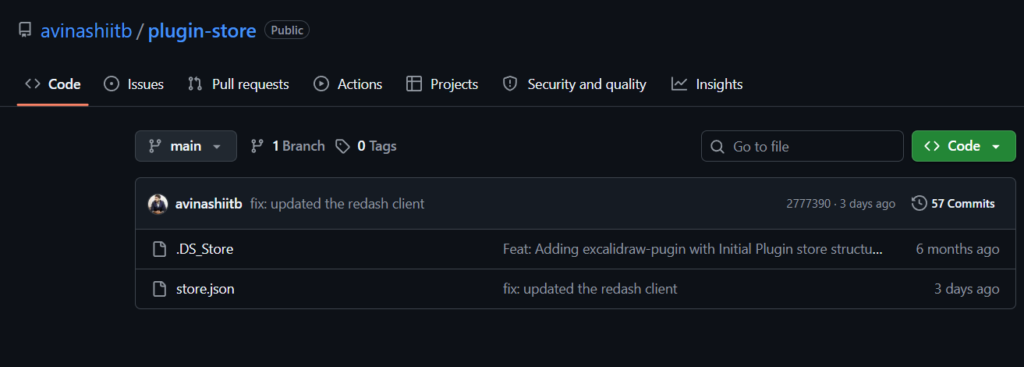
The repository contains the plugin information used by DevScribe to build the Plugin Store.
Before adding your plugin, make sure you have the information required for its store entry.
Add Your Plugin Information
Plugin information is maintained in the store repository through a store.json file.
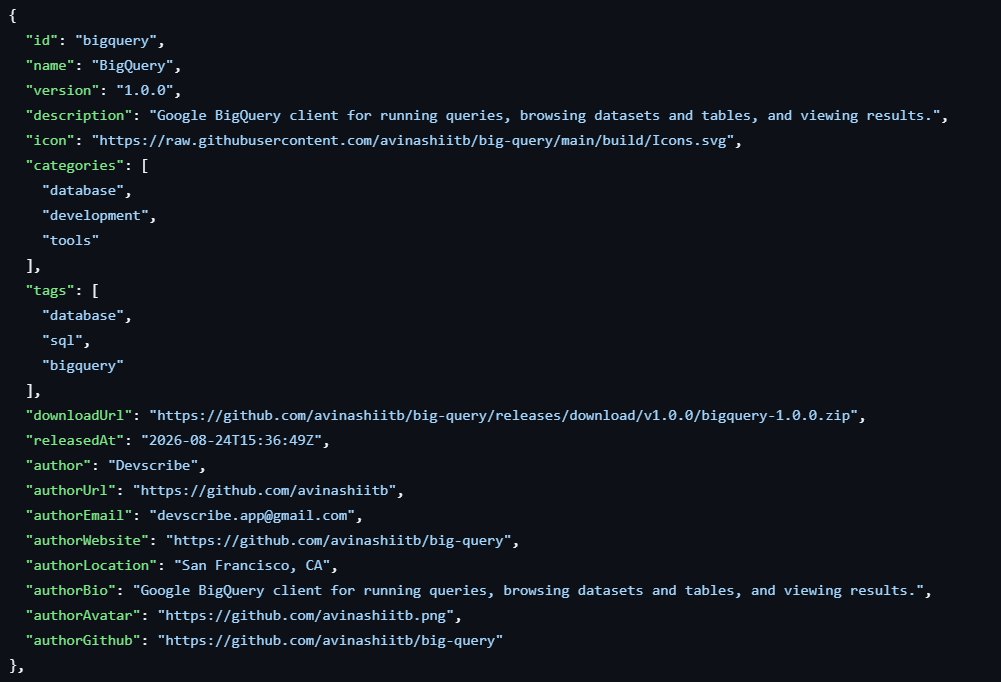
Each plugin entry contains details such as its name, version, description, categories, tags, download location, release date, and author.
A plugin entry looks like this:
{
  "id": "bigquery",
  "name": "BigQuery",
  "version": "1.0.0",
  "description": "Google BigQuery client for running queries, browsing datasets and tables, and viewing results.",
  "categories": [
    "database",
    "development",
    "tools"
  ],
  "tags": [
    "database",
    "sql",
    "bigquery"
  ],
  "downloadUrl": "https://github.com/example/plugin/releases/download/v1.0.0/plugin-1.0.0.zip",
  "releasedAt": "2026-08-24T15:36:49Z",
  "author": "Developer Name"
}
Plugin Entry Fields
| Field | Description |
|---|---|
id | Unique identifier for the plugin |
name | Name displayed for the plugin |
version | Current plugin version |
description | Short description of what the plugin does |
categories | Categories associated with the plugin |
tags | Tags used to describe and organize the plugin |
downloadUrl | URL from which the plugin can be downloaded |
releasedAt | Plugin release date and time |
author | Plugin author |
How the Plugin Appears in DevScribe
The information in store.json is used to build the plugin card shown to users in the Plugin Store.
The card can display information such as:
- Plugin name
- Version
- Description
- Categories
- Tags
- Author
- Download information
This allows users to understand what the plugin does before downloading it.
From Local Plugin to Plugin Store
A good workflow is to develop and test your plugin locally first.
Once you’re happy with the plugin, add its information to the Plugin Store repository so it can be made available to other DevScribe users.
The two workflows serve different purposes:
| Local Plugin | Plugin Store |
|---|---|
| Development and testing | Sharing with other users |
| Added through Plugins, Installed, Add plugin locally | Added through the Plugin Store repository |
| Available only in your local DevScribe installation | Available to DevScribe users through the Plugin Store |
Conclusion
Adding your plugin to the DevScribe Plugin Store makes it possible for other users to discover and download it directly through DevScribe.
Start by testing the plugin locally, then add its store information to the Plugin Store repository once it is ready to share.