
Pushing Changes to GitHub
Once a DevScribe project is linked to a GitHub repository, you can push changes made in DevScribe directly to the repository.
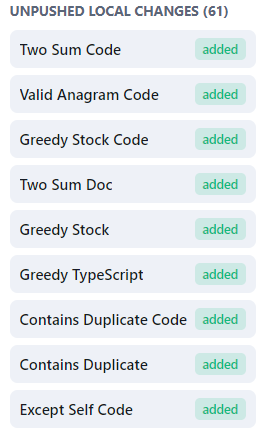
DevScribe keeps track of the files that have been modified locally and shows them in the GitHub panel before you push them.
Video walkthrough: The attached video demonstrates the complete process of pushing changes from a DevScribe project to GitHub.
Push Local Changes
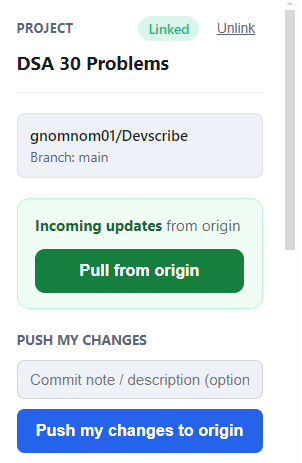
Open the project linked to your GitHub repository and click the GitHub icon on the right side of the DevScribe window.
When local changes are available, the GitHub panel shows them under Push My Changes.
The panel also displays the number of files that have been modified.
Review the Changes
Before pushing, review the files listed under Push My Changes to confirm that the changes you want to send to GitHub are included.
You can also add a commit note describing the changes.
For example:
Update API documentation and configurationPush the Changes
Once the changes are ready:
- Open the GitHub panel.
- Review the modified files under Push My Changes.
- Add a commit note if required.
- Click Push my changes to origin.
DevScribe pushes the changes to the linked GitHub repository.
After a successful push, the GitHub panel displays a confirmation with the number of files updated.
For example:
Successfully pushed changes to GitHub. (7 file(s) updated)The Unpushed Local Changes count is also updated once the changes have been pushed.
Checking the Sync Status
The GitHub panel provides a quick view of the project’s current state.
If there are local changes that haven’t been pushed yet, they appear under Unpushed Local Changes.
After a successful push, the panel should no longer show those changes as unpushed.
This makes it easy to check whether your latest DevScribe changes have been sent to the linked repository.
Here’s a video walkthrough:
Before You Push
Before pushing changes, check:
- The correct GitHub repository is linked to the project.
- The modified files shown in Push My Changes are the files you want to commit.
- Your commit note accurately describes the changes, if you are adding one.
If the repository has changed since your last synchronization, you may need to pull the latest changes before pushing your local changes.
