
Creating an Architecture Diagram
The Diagram Plugin allows you to create professional architecture diagrams that stay connected with your documentation. You can create a new diagram from a project folder or directly from the left navigation panel, depending on your workflow.
Create from a Project Folder
Create an architecture diagram inside a project folder to keep it organized with your documentation, APIs, code files, database queries, and other project artifacts.
How to Create
- Navigate to the folder where you want to create the diagram.
- Click the horizontal three-dot (⋯) More Options menu next to the folder.
- Select Add Diagram.
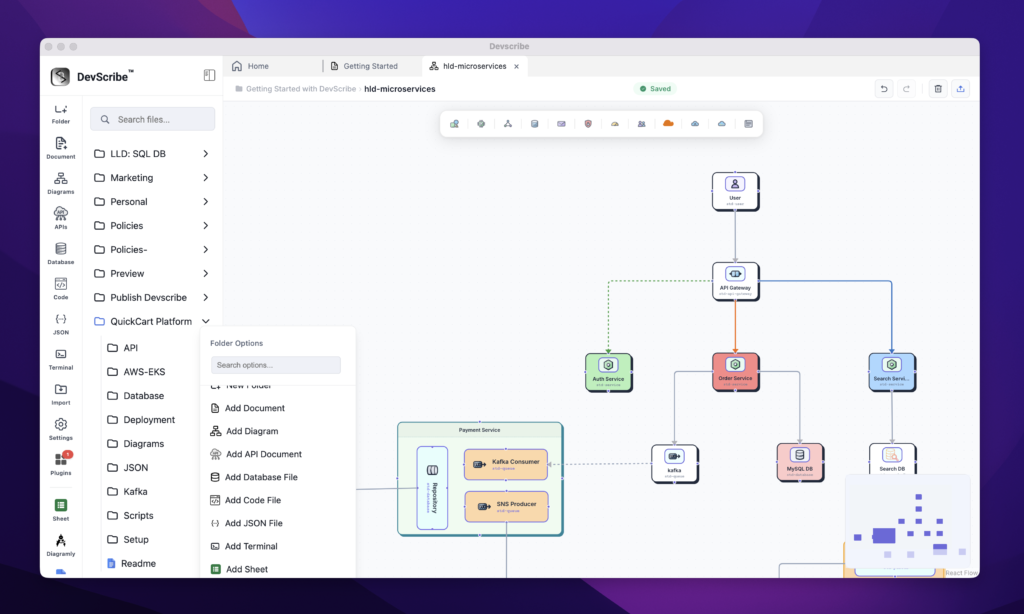
The new architecture diagram will be added to the selected folder and opened automatically in the Diagram Plugin, where you can immediately begin designing your system.
Create from the Left Navigation Bar
You can also create an architecture diagram directly from the left navigation panel.
How to Create
- Click the Diagram icon in the left navigation bar.
- Enter a name for the diagram.
- Click Create.
A new architecture diagram is created and opened in the Diagram Plugin, allowing you to immediately start designing your system architecture.
