Running Utility Scripts
The Code Plugin provides a convenient way to create, execute, and maintain utility scripts alongside your project documentation. Instead of storing scripts across multiple repositories, personal notes, or local folders, DevScribe helps you organize them in a single workspace where they can be easily discovered, updated, and reused.
Utility scripts are useful for automating repetitive tasks, simplifying project setup, and improving developer productivity. By keeping scripts together with documentation, APIs, database queries, Docker Compose files, and architecture diagrams, your entire development workflow remains organized in one place.
Common use cases include:
- Project setup scripts
- Build automation
- Data migration scripts
- File processing utilities
- Log analysis
- Deployment helpers
- Code generation
- Backup and restore utilities
Creating a Utility Script
Create a utility script just like any other code file in DevScribe.
How to Create
- Navigate to the folder where you want to create the script.
- Click the horizontal three-dot (⋯) More Options menu next to the folder.
- Select Add Code.
- Open the Language dropdown in the Code Editor.
- Select the language you want to use.
Common Languages
- JavaScript
- TypeScript
- Java
The editor is now configured for the selected language, allowing you to start writing your utility script immediately.
Running a Utility Script
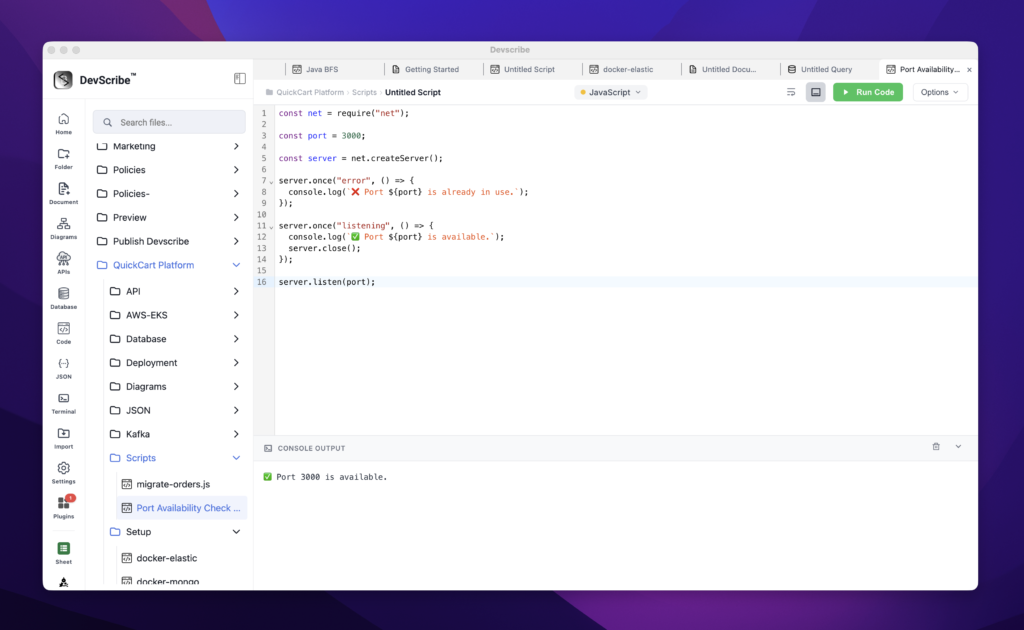
Once your script is ready, you can execute it directly from the Code Plugin.
How to Run
- Write your script.
- Click the Run button.
- DevScribe executes the script locally.
- Review the output directly within the editor.
- Modify the script and run it again whenever needed.
This allows you to automate repetitive tasks without switching to an external IDE or terminal.
Embedding Utility Scripts in Documentation
Utility scripts can be embedded directly into your documentation, allowing setup guides, operational runbooks, and technical documentation to stay synchronized with the latest version of the script.
How to Embed
- Open the documentation where you want to include the script.
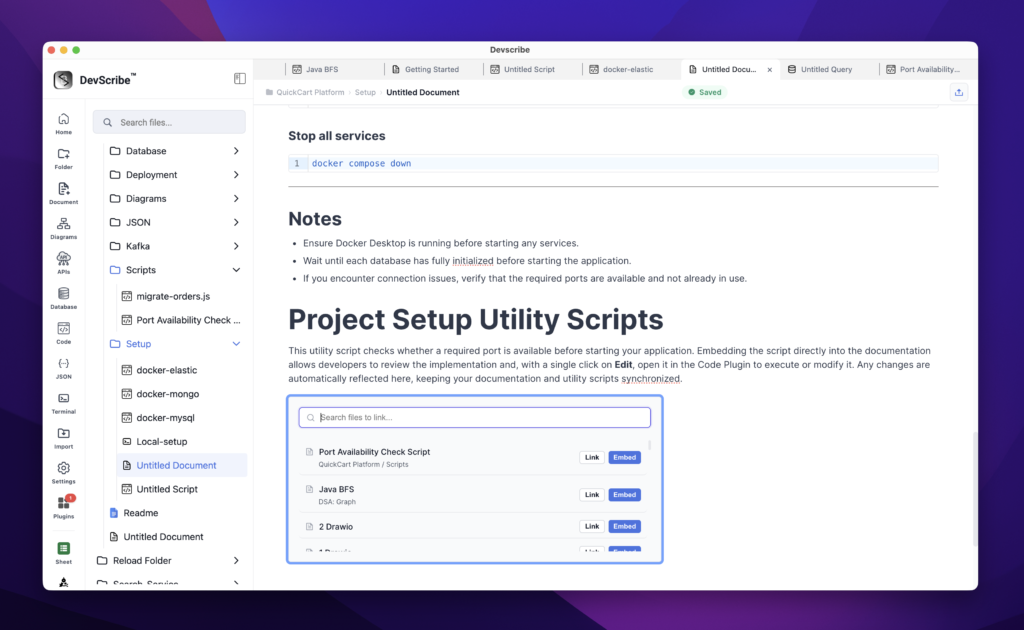
- Type
/. - Select Link File.
- Choose the utility script and select Embed.
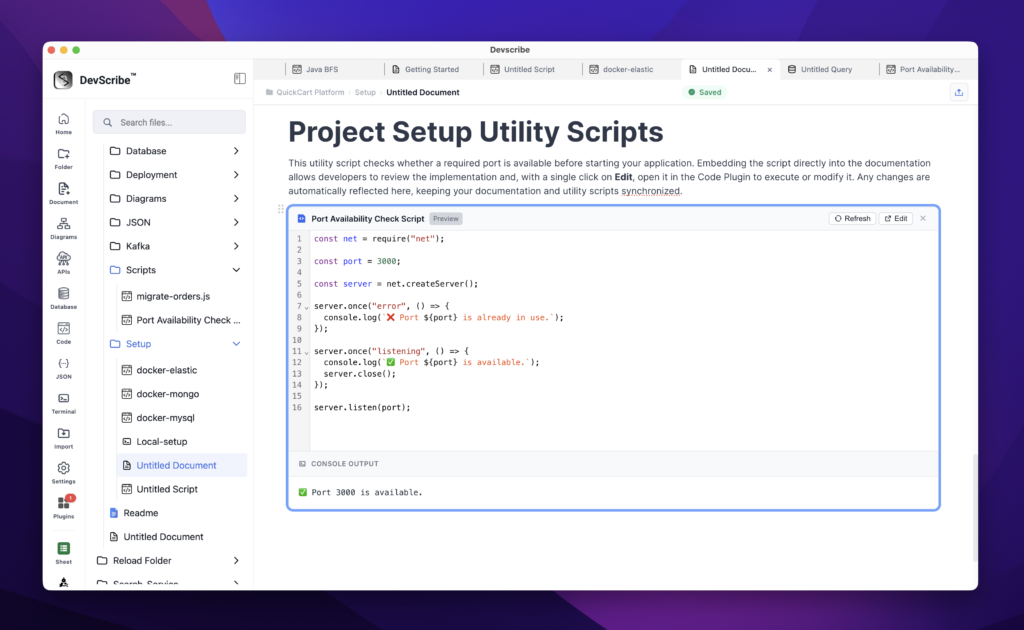
The script is embedded directly into the document. If you later update the script, the embedded version is automatically updated since both reference the same underlying file.
This allows engineers to read the documentation, review the script, open it in the Code Plugin, execute it locally, and keep documentation synchronized without maintaining duplicate copies of the same code.